

You blocked someone weeks ago and now you’re wondering did they try to reach out? Maybe it was a mistake. Maybe you need to check something important. Whatever the reason, figuring out how to check blocked messages on iPhone leaves most people completely stumped. Apple doesn’t make this obvious. There’s no folder labeled “blocked messages” sitting in your inbox waiting for you.However, that does not imply you lack alternatives. This guide walks you through exactly what happens to blocked messages, where to look, and what you can actually do to recover missed communication.
Does iPhone Actually Save Blocked Messages
Here’s the truth most people don’t want to hear. iPhone does not save blocked messages in a retrievable folder. When someone on your blocked list sends you a text, that message never actually reaches your device in a readable form. It doesn’t sit in a hidden inbox. It doesn’t pile up somewhere waiting for you to unblock the person. It simply never arrives at least not in any way you can access directly.
This surprises a lot of people. Android handles blocking differently on some versions and some third party apps create blocked message folders. But Apple’s native iOS blocking works at a deeper level the message gets filtered before it ever lands in your Messages app.
What Happens to a Message When You Block Someone on iPhone
When a blocked contact sends you an iMessage or SMS, here’s what actually happens step by step:
- The message gets sent from their device normally — they have no idea it won’t reach you
- On iMessage — Apple’s servers receive the message but your iPhone never displays a delivery notification to the sender
- On SMS — the carrier delivers it technically but iOS filters it out before it appears in your Messages app
- The sender sees the message as “Delivered” in some cases — which is why blocked people often don’t realize they’re blocked
- You receive zero notification — no badge, no sound, no alert of any kind
The blocked message essentially disappears into a void. Your iPhone acknowledges it exists at a system level but never shows it to you. And unlike voicemails — which do get stored in a separate blocked section — text messages leave no trace behind.
Can You Read Blocked Messages Without Unblocking
The short answer is no. There’s no native iOS feature that lets you peek at messages from blocked contacts without actually unblocking them first. Apple designed the blocking system to be complete — not partial. You either receive someone’s messages or you don’t.
Some people hope that iCloud backup holds blocked message data somewhere accessible. It doesn’t work that way. iCloud backs up messages that appeared in your inbox — not messages that were filtered out before arriving. So even restoring from a full iCloud backup won’t surface blocked messages you never received.
Third party recovery tools sometimes claim they can retrieve blocked messages. Most of these claims are exaggerated at best and outright false at worst. More on that in a later section.
Does iPhone Notify You When a Blocked Number Texts You
No — and that’s intentional. The entire point of blocking someone is that you don’t know when they try to contact you. Your iPhone stays completely silent when a blocked number sends a message. No notification sound. No banner. No badge on the Messages icon. Nothing disrupts your day to let you know the blocked contact attempted contact.
This is actually one of the cleaner aspects of iPhone’s blocking system. Unlike some platforms that show “message blocked” notifications — which defeat the purpose entirely iOS keeps the whole process invisible on your end.
How to Check Blocked Messages on iPhone Step by Step
Since blocked messages don’t store anywhere accessible, checking them directly isn’t possible through normal means. But there are related things you can check — and understanding how to check blocked messages on iPhone means knowing where to look and what actions actually give you information.
Checking Blocked Messages Through iPhone Settings
While you can’t read blocked messages through Settings, you can confirm your blocking setup and review what’s happening:
- Open the Settings app on your iPhone
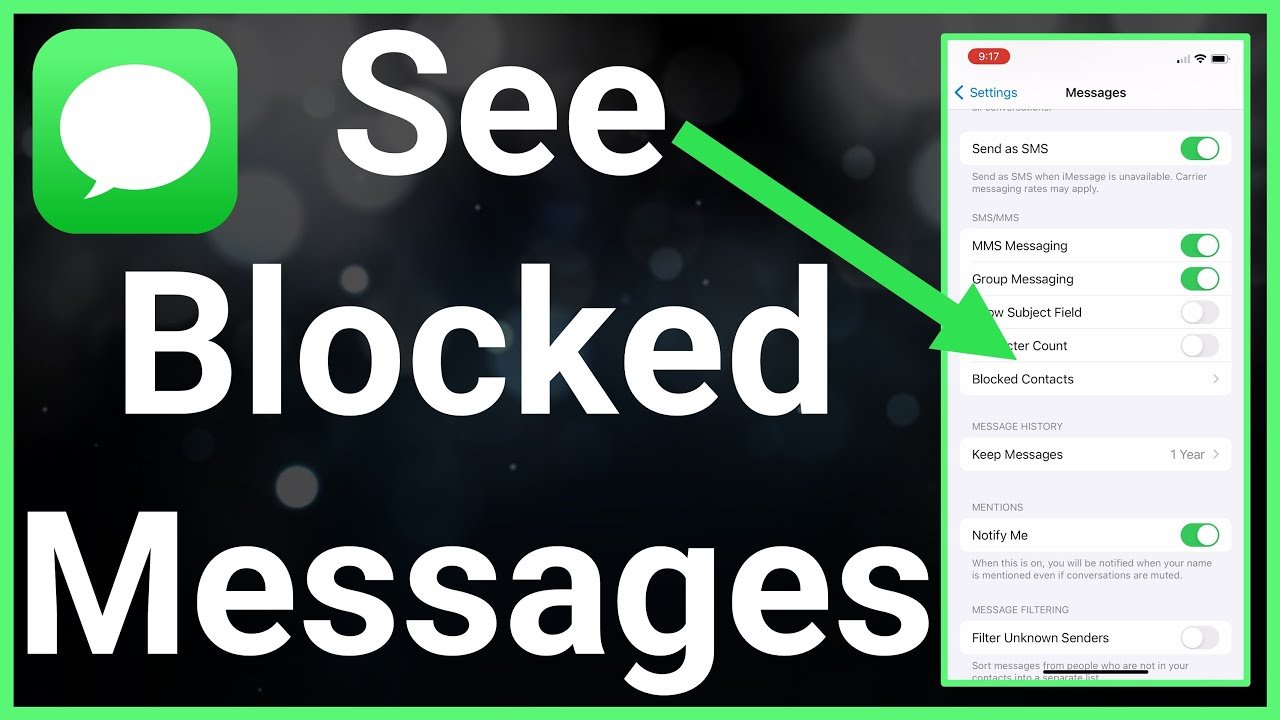
- Scroll down and tap Messages
- Tap Blocked Contacts
- Here you’ll see every contact currently on your blocked list
This screen shows you exactly who you’ve blocked. If someone you expected messages from appears here — that explains why you never heard from them. Seeing their name on this list tells you their messages never made it through.
For phone calls and FaceTime blocking specifically:
- Open Settings
- Tap Phone
- Tap Blocked Contacts
Both lists work independently — blocking in Messages doesn’t automatically block calls and vice versa unless you block through the contact card directly.
How to Find Blocked Contacts List on iPhone
Finding your complete blocked contacts list takes just a few taps. Here’s the full process across all communication types:
For Messages: Settings → Messages → Blocked Contacts
For Phone Calls: Settings → Phone → Blocked Contacts
For FaceTime: Settings → FaceTime → Blocked Contacts
Each section shows its own separate list. A contact blocked in one area isn’t automatically blocked everywhere. This catches many people off guard — they block a number in Messages but still receive calls from the same number.
Pro tip — block someone properly by going through their contact card:
- Open the Phone or Messages app
- Find the contact or number
- Tap their name or number at the top
- Scroll down and tap Block this Caller
- This blocks them across calls, messages, and FaceTime simultaneously
Using iCloud to Find Any Trace of Blocked Messages
iCloud doesn’t store blocked messages separately — but it does sync your Messages history across devices. If you’re trying to find messages from before you blocked someone, iCloud might help:
- Open Messages on your iPhone
- Use the search bar at the top
- Type the contact’s name or number
- Scroll through results — any messages from before the block happened will appear here
This only works for messages that arrived before the block was put in place. Anything sent after blocking simply doesn’t exist in your message history anywhere.
How to See Blocked Texts on iPhone Using Different iOS Versions
The blocking system works consistently across modern iOS versions but there are some differences worth knowing about depending on what software your iPhone runs.
How It Works on iOS 16 and iOS 17
Both iOS 16 and iOS 17 handle blocked texts the same fundamental way — filtered out before reaching your inbox with no accessible storage location. However iOS 17 introduced some changes to how unknown senders get filtered that sometimes gets confused with blocking:
- Filter Unknown Senders — a separate feature from blocking that sorts messages from unknown numbers into a different tab
- This feature creates a tab called “Unknown Senders” in your Messages app
- Messages there are NOT blocked — they just aren’t from saved contacts
- You can read these messages by tapping the Unknown Senders filter tab
Many people confuse “Unknown Senders” filtering with blocking. If you turned on Filter Unknown Senders and can’t find a message — check that tab first before assuming it’s blocked.
To check this setting:
- Go to Settings
- Tap Messages
- Look for Filter Unknown Senders
- If it’s toggled on — check the Unknown Senders tab in Messages
Differences Between Older and Newer iPhone Models
The blocking feature works identically across iPhone models — an iPhone 11 and an iPhone 15 Pro handle blocked messages the same way. The hardware doesn’t affect how software blocking works. What matters is the iOS version running on the device not the physical model.
Older iPhones running iOS 12 or earlier had a slightly different Settings layout but the blocking functionality remained the same. If you’re running anything below iOS 14 — consider updating since newer iOS versions include better privacy and filtering tools overall.
Does the Process Change After iOS Updates
Major iOS updates occasionally shift where settings live within the Settings app but the core blocking functionality hasn’t changed significantly in years. After a major update — if you can’t find your blocked contacts list where it used to be:
- Check Settings → Messages → Blocked Contacts
- Check Settings → Phone → Blocked Contacts
- Use the Settings search bar and type “blocked” to find it instantly
How to Unblock Someone and Retrieve Their Messages
If you need to hear from someone you’ve blocked — unblocking them is the only real path forward. Understanding what happens when you unblock matters before you take that step.
Step by Step — How to Unblock a Contact on iPhone
Unblocking someone takes under a minute:
- Open Settings
- Tap Messages
- Tap Blocked Contacts
- Find the contact you want to unblock
- Swipe left on their name
- Tap Unblock
Alternatively through the Phone app:
- Open Settings
- Tap Phone
- Tap Blocked Contacts
- Swipe left on the number
- Tap Unblock
For a complete unblock across all communication — do both steps above plus check FaceTime blocked contacts as well.
Will Unblocking Someone Show Their Old Messages
No. This is the part that disappoints most people. Unblocking a contact does not magically surface messages they sent while blocked. Those messages are gone — they never stored anywhere accessible on your device. Unblocking simply means future messages from that person will arrive normally going forward.
Imagine it as shutting off a faucet.. Turning it back on doesn’t recover the water that didn’t flow while it was off. Future flow resumes — past flow is simply gone.
What Happens to Future Messages After Unblocking
Once you unblock someone their next message arrives in your inbox just like any other contact. There’s no delay and no special notification telling you they’ve been unblocked. Their first message after unblocking simply appears normally. They won’t know they were ever blocked unless you tell them directly.
Pros and Cons of iPhone Message Blocking
Blocking is a powerful tool. But like any tool it has situations where it helps enormously and situations where it creates unintended problems.
Why Blocking Messages Protects You
| Benefit | Detail |
| Stops harassment | Blocked contacts can’t reach you through Messages or calls |
| Reduces anxiety | No notifications from stressful contacts |
| Filters spam | Block numbers sending promotional or scam messages |
| Complete silence | No alerts whatsoever from blocked numbers |
| Easy to manage | Simple settings interface to add or remove blocks |
Blocking works best as a deliberate long term decision — not something you toggle on and off frequently. Every time you unblock someone to check if they messaged you, you temporarily open the door to receiving their messages again.
Situations Where Blocking Causes Problems
- Accidentally blocking an important contact — family member, employer, doctor
- Blocking a number that gets reassigned to a different person later
- Missing time sensitive messages from someone you forgot you blocked
- Blocking through one app but not realizing calls still come through
- Children or elderly users accidentally blocking contacts without realizing it
The biggest practical problem is accidental blocking. It happens more often than people admit — a wrong tap during a frustrating moment and suddenly an important contact’s messages vanish completely.
Real World Case Study — Missing an Important Message From a Blocked Contact
The Situation — Accidentally Blocking an Important Contact
A woman blocked her landlord’s number after a frustrating rent dispute. Three weeks later she received an eviction notice — not because she hadn’t paid rent but because her landlord had sent her several messages about a required property inspection she never responded to. She had completely forgotten about the block.
What the User Did to Recover the Situation
She went through her blocked contacts list in Settings and found her landlord’s number there. After unblocking immediately she called him directly to explain the situation. The messages he’d sent during the blocked period were gone — she couldn’t read them — but the direct phone call resolved the misunderstanding quickly. She also checked her email for any related communication she might have missed.
What You Can Learn From This Case
Review your blocked contacts list regularly. Blocking someone in anger or frustration is completely understandable — but forgetting about it creates real problems. A monthly check of your blocked list takes 30 seconds and prevents the kind of situation described above. And always remember — unblocking someone doesn’t recover their past messages. Act quickly if you realize a block was a mistake.
Third Party Apps — Can They Help You See Blocked Messages
The app store is full of tools claiming to recover deleted or blocked messages. Most of them deserve serious skepticism.
Do Third Party Apps Actually Work for Blocked Messages
Honestly — no. Not for blocked messages specifically. Here’s why. Blocked messages never stored on your device in the first place. A recovery app works by scanning your device’s storage for deleted data that hasn’t been overwritten yet. But if the data was never written — there’s nothing to find.
Apps that claim to recover blocked messages are either:
- Confused about what blocking actually does
- Deliberately misleading users to get downloads or purchases
- Referring to deleted messages rather than blocked ones — a completely different situation
Deleted messages and blocked messages are not the same thing. A recovery app might successfully find a deleted message you removed from your inbox. It cannot find a message that was blocked before it ever arrived.
Safe Apps vs Scam Apps — How to Tell the Difference
If you’re looking at recovery apps for deleted messages — not blocked ones — here’s how to spot legitimate tools versus scams:
Signs of a legitimate app:
- Available on the official App Store
- Clear description of what it actually does
- Genuine user reviews with specific details
- Doesn’t ask for unusual permissions
- Transparent pricing with no hidden charges
Red flags:
- Claims to recover blocked messages specifically
- Requires you to enter your Apple ID password
- Asks for payment before showing any results
- Promises 100% recovery rate
- Has generic five star reviews with no detail
What Apple Allows and What It Blocks
Apple’s App Store guidelines prevent third party apps from accessing Messages data directly on a locked or restricted level. Any app that claims deep access to your Messages system beyond what Apple’s APIs allow is either lying or violating App Store rules. Stick to apps available through the official App Store and read their descriptions carefully before downloading anything.
How to Manage Your Blocked List on iPhone Like a Pro
Managing your blocked list well prevents the accidental blocking problems that cause so much frustration.
How to Review Your Full Blocked Contacts List
Make this a monthly habit:
- Open Settings
- Tap Messages → Blocked Contacts
- Review every name and number on the list
- Repeat for Phone → Blocked Contacts
- Repeat for FaceTime → Blocked Contacts
Cross reference all three lists. Someone might appear on one list but not the others. A thorough monthly review catches accidental blocks before they cause real problems.
When to Unblock and When to Keep Blocking
| Situation | Recommendation |
| Accidental block of trusted contact | Unblock immediately |
| Temporary frustration with someone important | Consider unblocking after cooling down |
| Spam or scam number | Keep blocked permanently |
| Harassment from a known person | Keep blocked and document incidents |
| Old contact you no longer need to hear from | Keep blocked unless circumstances change |
There’s no shame in keeping someone blocked long term. The tool exists precisely for situations where you genuinely don’t want contact. But reviewing the list ensures every block on there is intentional and current.
Better Alternatives to Blocking on iPhone
Sometimes blocking is heavier than what you actually need. These alternatives give you more control:
- Do Not Disturb for specific contacts — silence notifications from one person without fully blocking them
- Mute a conversation — stop notifications from a thread without blocking the number
- Filter Unknown Senders — automatically sort messages from unsaved numbers into a separate tab
- Focus modes — create a custom Focus that only allows messages from specific contacts through during certain times
- Screen Time communication limits — useful for managing who can contact children on family devices
Frequently Asked Questions
How to check blocked messages on iPhone?
You can’t read blocked messages directly because iPhone doesn’t store them in an accessible location. The only way to see future messages from a blocked contact is to unblock them through Settings → Messages → Blocked Contacts.
Can you see messages from blocked numbers on iPhone?
No. Messages from blocked numbers never appear in your inbox and don’t store anywhere readable on your device. Once a number is blocked their messages simply don’t reach you.
Do blocked messages get deleted on iPhone?
They don’t get deleted because they never arrive in the first place. Blocking prevents delivery at the system level — there’s nothing stored to delete.
How do I find my blocked messages list on iPhone?
Go to Settings → Messages → Blocked Contacts to see everyone you’ve blocked in Messages. Check Settings → Phone → Blocked Contacts for call blocking as well.
Will someone know if I unblock them on iPhone?
No. iPhone doesn’t notify anyone when they get unblocked. They simply start receiving normal message delivery again without any alert about the change.
Can blocked messages be recovered on iPhone?
No. Because blocked messages never stored on your device there’s nothing to recover. Third party apps cannot retrieve them either the data simply doesn’t exist anywhere on your phone.
Does iPhone save blocked voicemails?
Yes this is different from text messages. Blocked callers who leave voicemails do get stored in a separate section. Open the Phone app, tap Voicemail, and scroll to the bottom to find a Blocked Messages section where voicemails from blocked numbers appear.
How do I stop blocking messages accidentally on iPhone?
Review your blocked list monthly through Settings. Also be careful when tapping options inside a conversation the block option sits close to other options in the contact info screen. If you block someone accidentally unblock them immediately through Settings → Messages → Blocked Contacts.
Understanding how to check blocked messages on iPhone comes down to one honest reality the messages aren’t there to find. Apple’s blocking system works completely and quietly. No hidden folder. No secret inbox. Just clean silence from whoever you’ve blocked.
The smartest move is managing your blocked list carefully from the start. Review it regularly. Block deliberately rather than impulsively. And if you realize a block was a mistake unblock quickly and reach out directly since those missed messages won’t come back on their own.
One final tip use the voicemail blocked section regularly. It’s the one place where blocked contact attempts actually do leave a trace and most iPhone users never think to check it.Knowing how to check blocked messages on iPhone saves you from unnecessary confusion and missed connections. The process is straightforward once you understand how Apple’s blocking system actually works. And while how to check blocked messages on iPhone doesn’t give you a magic folder full of missed texts — it does give you the tools to manage your blocked list smartly. Next time someone important goes quiet — you’ll know exactly where to look. Because figuring out how to check blocked messages on iPhone is really about staying in control of who reaches you and when.