
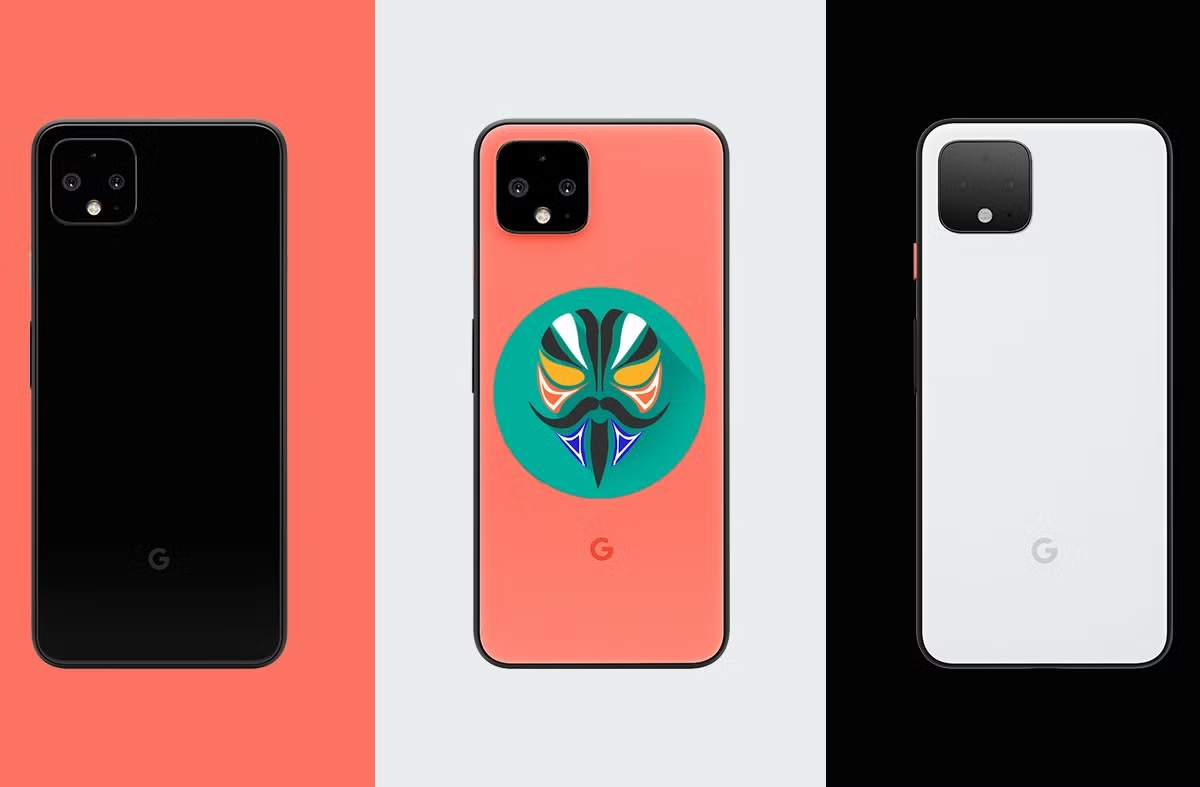
What OS Can I Install onto a Pixel 4 XL?, So you’ve got a Pixel 4 XL and you’re wondering what else it can do. Smart question. Google’s flagship from 2019 might be a few years old but it’s still one of the most capable devices in the custom ROM world. Powerful hardware, an unlockable bootloader and a massive developer community make it a playground for anyone who wants to break free from stock Android. Whether you’re chasing privacy, performance or just pure curiosity this guide covers everything.
Why the Pixel 4 XL Is Perfect for Installing a Custom OS
Not every phone plays nice with custom operating systems. Locked bootloaders, encrypted firmware and manufacturer restrictions turn most devices into digital fortresses. The Pixel 4 XL is different. Google deliberately made it one of the most open Android devices on the market and the enthusiast community has rewarded that decision with years of active development.
The Pixel 4 XL’s Unlockable Bootloader — Your Gateway to Everything
Think of the bootloader as the gatekeeper of your phone. It’s the first thing that runs when you power on and it decides what software your device is allowed to load. On most phones, manufacturers lock this down completely. Try to flash anything unofficial and the phone simply refuses.
Google takes a different approach. The Pixel 4 XL ships with an unlockable bootloader meaning you can open that gate yourself with a single fastboot command. Once unlocked, your phone will boot virtually any compatible OS you throw at it. That’s the foundation of everything covered in this article.
Unlocking does wipe your device completely. That’s expected and it’s actually a security feature, it prevents someone from unlocking your phone without your knowledge. Back everything up first.
Active Developer Community and Custom ROM Support
The Pixel 4 XL’s developer community is genuinely impressive. Head over to XDA Developers and search for “Pixel 4 XL” you’ll find hundreds of active threads, ROM releases, kernel modifications and troubleshooting guides. Developers actively maintain builds for this device years after Google dropped official support.
Why does community support matter so much? Because a custom OS is only as good as the team maintaining it. A ROM without active development quickly falls behind on security patches and bug fixes. The Pixel 4 XL benefits from some of the most dedicated ROM developers in the Android ecosystem which means you’re not installing abandoned software. You’re getting actively developed, regularly updated operating systems.
What You Need Before Installing Any OS on a Pixel 4 XL
Before touching anything, make sure you have these essentials ready:
- A fully charged Pixel 4 XL — aim for at least 80% battery
- A PC running Windows, macOS or Linux — needed for ADB and Fastboot commands
- USB cable — preferably the original Google cable for reliability
- ADB and Fastboot tools installed — download from Android SDK Platform Tools
- Developer Options enabled on the phone — tap Build Number seven times in Settings → About Phone
- OEM Unlocking toggled on — found inside Developer Options
- A complete backup — photos, contacts, app data, everything. You will lose it all during bootloader unlock.
Getting these sorted takes maybe 30 minutes. Skipping any of them causes headaches that take far longer to untangle.
What OS Can I Install onto a Pixel 4 XL? — The Full List
What OS Can I Install onto a Pixel 4 XL? This is very common quction, Here’s where it gets exciting. The Pixel 4 XL supports more alternative operating systems than almost any other Android device available. From privacy-hardened Android forks to full Linux distributions the options are genuinely impressive.
Stock Android (AOSP) The Baseline
Android Open Source Project AOSP is the foundation everything else builds on. It’s pure Android without Google’s apps, services or Pixel-specific customizations. Flashing AOSP gives you a clean, bloat-free Android experience that’s surprisingly fast and light.
Who actually wants this? Developers, mostly. AOSP is the starting point for testing apps and building custom software. For everyday use it’s a bit bare — no Play Store, no Google Maps, no push notifications for most apps. However as a base to understand what Android looks like without the commercial layer on top? It’s fascinating.
AOSP builds for the Pixel 4 XL get maintained by Google itself since it’s an open-source project. You’ll find the latest builds at source.android.com.
GrapheneOS — The Privacy Powerhouse
If privacy is your priority, GrapheneOS is the answer to “what OS can I install onto a Pixel 4 XL” that comes up in almost every security conversation. It’s not just another custom ROM — it’s a hardened Android fork built from the ground up with security architecture that goes far beyond what stock Android offers.
GrapheneOS officially supports the Pixel 4 XL and makes installation remarkably straightforward through its web-based installer.
What makes GrapheneOS genuinely different:
- Hardened memory allocator — replaces Android’s standard allocator with one that’s far more resistant to exploitation
- Sandboxed Google Play — lets you run Google apps in an isolated sandbox without giving them system-level access
- Network and sensor permissions — lets you block any app from accessing the internet or device sensors entirely
- Verified Boot — GrapheneOS maintains full verified boot even with a custom OS installed
- Regular security patches — often patches faster than Google itself
“GrapheneOS is the most private and secure mobile operating system available today, period.” Privacy researcher community consensus across Privacy Guides
GrapheneOS doesn’t support microG by design the developers consider it a security compromise. If you need Google services, use the sandboxed Play Store instead. It works surprisingly well for most apps including banking applications.
Best for: Journalists, activists, privacy professionals and anyone who takes digital security seriously.
Install from:grapheneos.org
CalyxOS — Privacy Meets Usability
GrapheneOS is the security purist’s choice. CalyxOS is what you install when you want strong privacy without giving up everyday convenience. It officially supports the Pixel 4 XL and strikes a genuinely impressive balance between de-Googled security and real-world usability.
The biggest difference from GrapheneOS? CalyxOS includes microG — an open-source reimplementation of Google’s core services. This means apps that rely on Google’s push notification system, location services or authentication actually work without installing Google Play. For most users, the app compatibility difference between CalyxOS and stock Android is barely noticeable.
CalyxOS highlights:
- Built-in VPN support via Calyx’s own free VPN service for members
- F-Droid included — a curated store of open-source apps
- Aurora Store — lets you install Play Store apps without a Google account
- Firewall controls — block individual app network access
- Monthly security patches aligned with Google’s Pixel update schedule
CalyxOS also includes the Datura Firewall, which gives you granular control over which apps can access the internet, your local network or background data. It’s a feature that stock Android simply doesn’t offer.
Best for: Privacy-conscious users who still want a smooth, familiar Android experience.
Install from: calyxos.org
LineageOS — The Classic Custom ROM King
Ask any Android enthusiast to name the most famous custom ROM and they’ll say LineageOS without hesitation. Born from the ashes of CyanogenMod back in 2016, LineageOS has been the backbone of the custom ROM community ever since. It supports hundreds of devices and the Pixel 4 XL is among them.
LineageOS is essentially clean Android with extra features baked in. It’s not privacy-focused in the way GrapheneOS is but it strips out manufacturer bloatware, provides features stock Android lacks and keeps older devices alive long after official support ends.
What LineageOS adds over stock Android:
- Privacy Guard — per-app permission management beyond Android’s defaults
- Themes and customization — deeper UI tweaking than stock allows
- Profiles — switch between different device configurations automatically
- Long-term device support — keeps the Pixel 4 XL receiving updates years beyond Google’s support window
- Optional root access — install with or without SU access as you prefer
LineageOS ships without Google apps by default. You can add them separately using an OpenGApps or MindTheGapps package during installation giving you full Google ecosystem access on a clean custom ROM base.
Best for: Power users who want maximum customization and long-term device support.
Install from: lineageos.org
DivestOS — The Security-Hardened Underdog
DivestOS doesn’t get nearly the attention it deserves. Think of it as LineageOS with a serious security upgrade applied on top. The developer a solo maintainer known as Tavi takes LineageOS builds and applies extensive privacy and security patches that the main LineageOS project doesn’t include.
DivestOS supports the Pixel 4 XL and is a compelling choice for users who want strong security but find GrapheneOS too restrictive.
DivestOS security additions include:
- Hundreds of hardening patches from GrapheneOS and other sources applied to the LineageOS base
- Hypatia — a real-time malware scanner built into the OS
- Automatic removal of proprietary blobs where possible
- Regular security patch integration
- Support for a wide range of devices — not just Pixels
The trade-off is that it’s maintained by a single developer. That’s both impressive and a potential single point of failure. However the project has maintained consistent updates for years.
Best for: Security-focused users who want broader app compatibility than GrapheneOS offers.
Install from: divestos.org
/e/OS — Android Without Google
/e/OS takes de-Googled Android and wraps it in a genuinely polished, consumer-friendly package. Developed by the nonprofit Murena, /e/OS officially supports the Pixel 4 XL and aims to be something anyone not just tech enthusiasts can use comfortably.
The visual design takes inspiration from iOS with a clean launcher and simplified settings. Under the hood it uses microG for app compatibility and routes traffic away from Google’s servers wherever possible.
What /e/OS offers:
- Murena Cloud — a privacy-respecting alternative to Google’s cloud services (calendar, contacts, mail, storage)
- App Lounge — a unified app store pulling from both F-Droid and the Play Store without requiring a Google account
- Privacy scoring — shows you a privacy rating for every app before you install it
- Advanced Privacy panel — real-time tracker blocking and fake location capability
- Pre-configured with privacy-friendly default apps
/e/OS is particularly interesting if you want to escape Google’s ecosystem entirely not just on your phone but also in the cloud. The Murena cloud subscription gives you a complete Google Workspace alternative.
Best for: Non-technical users who want a complete de-Googled experience without a steep learning curve.
Install from: e.foundation
crDroid — For the Feature Hunters
crDroid is built for users who find stock Android too plain but want something more stable and refined than an experimental ROM. Based on LineageOS with extensive additions from AOSP and the broader custom ROM community, crDroid packs a remarkable number of features into a surprisingly stable package.
The Pixel 4 XL has solid crDroid support and the community maintains regular builds with timely security patches.
crDroid standout features:
- crDroid Settings — a dedicated settings panel with hundreds of customization options
- Status bar tweaks, lock screen customization and navigation bar modifications
- Per-app volume control and audio enhancements
- Quick Settings tile editor with more options than stock
- Optional face unlock and fingerprint customizations
- Smooth performance with various kernel optimizations
What sets crDroid apart from LineageOS is the sheer depth of visual and behavioral customization without needing to install additional mods. Everything’s built in.
Install from: crdroid.net
Evolution X — The Pixel Experience Supercharged
Evolution X originated as a ROM aimed at delivering the Pixel experience to devices that are not part of the Pixel lineup.On an actual Pixel 4 XL it takes that concept further keeping the Pixel aesthetic while adding a significant layer of performance and customization on top.
It’s one of the smoothest-performing custom ROMs available for the Pixel 4 XL. Users consistently report better battery life and snappier performance compared to stock Pixel UI.
Evolution X highlights:
- Pixel-style UI with deeper customization than Google allows
- OTA updates — over-the-air updates just like stock Android
- Extensive theming options including accent colors, icon shapes and font choices
- Performance profiles for battery saving or maximum performance
- Active development with frequent updates
Best for: Users who love the Pixel look but want more control over their experience.
Install from: evolution-x.org
Paranoid Android — The OG Custom ROM Returns
Paranoid Android is a name that carries serious weight in the custom ROM world. It pioneered several features that eventually made it into stock Android including per-app DPI scaling and immersive mode. After years of inactivity the project came back with renewed focus and Pixel 4 XL support.
The modern Paranoid Android is clean, fast and polished. It doesn’t try to pack in a thousand features instead it focuses on a refined, smooth experience with thoughtful additions.
Key features:
- Phenix UI — a clean, material-design interface with subtle refinements
- Smooth 90Hz optimization for the Pixel 4 XL’s display
- Customizable quick settings and status bar
- Strong gaming performance mode
- Regular security updates
Best for: Users who appreciate a polished, refined ROM without feature overload.
Install from: paranoidandroid.co
Ubuntu Touch — Can You Run Linux on a Pixel 4 XL?
Here’s where things get genuinely interesting. Ubuntu Touch is a mobile version of Ubuntu Linux developed by UBports a community that kept the project alive after Canonical abandoned it in 2017.
Running Ubuntu Touch on a Pixel 4 XL is possible but support is currently limited and experimental. It’s not a daily driver experience — yet. The UBports community has been expanding device support steadily and the Pixel line is on their radar.
What Ubuntu Touch offers:
- A genuinely different mobile OS experience built on Linux
- Convergence — plug into a monitor and use it like a desktop (on supported devices)
- No Android compatibility layer — apps are native Ubuntu Touch apps
- Open source from top to bottom
- Growing app library via the OpenStore
The biggest limitation? Android app compatibility is essentially zero. You’re working entirely within the Ubuntu Touch app ecosystem which is functional but far smaller than Android’s.
Best for: Linux enthusiasts and experimenters not recommended as a primary phone OS yet.
Check status at: ubports.com
PostmarketOS — Full Linux on Your Phone
PostmarketOS is an even more ambitious project. It aims to give every Android device a proper Linux distribution — based on Alpine Linux — with full package management, a terminal and desktop environments like Phosh, Plasma Mobile and GNOME.
Pixel 4 XL support in postmarketOS exists but varies by specific component. The camera, for example, is notoriously difficult to get working on Linux-based mobile systems. Basic calls, Wi-Fi and display typically work.
PostmarketOS realistic expectations:
| Feature | Status on Pixel 4 XL |
| Display | Works |
| Wi-Fi | Works |
| Bluetooth | Partial |
| Calls & SMS | Works on some builds |
| Camera | Limited/experimental |
| GPS | Partial |
| Hardware acceleration | Limited |
This is a project for experimenters and developers not daily drivers. But if you want to run apt or apk commands on your phone and tinker at the Linux level? It’s a remarkable achievement.
Install from: postmarketos.org
Comparing Every OS You Can Install on a Pixel 4 XL
Here’s the full breakdown at a glance. Use this table to find the right OS for your specific needs and priorities.
| OS | Based On | Privacy Level | Google Apps Support | Active Development | Ease of Install | Best For |
| Stock AOSP | Android | Medium | No (manual) | Yes | Medium | Developers |
| GrapheneOS | Android | Excellent | Sandboxed | Yes | Easy (web installer) | Privacy/security pros |
| CalyxOS | Android | Very High | Via microG | Yes | Easy | Privacy + usability |
| LineageOS | Android | High | Optional | Yes | Medium | Power users |
| DivestOS | LineageOS | Very High | Via microG | Yes | Medium | Security-focused users |
| /e/OS | Android | High | Via microG | Yes | Medium | Non-technical users |
| crDroid | LineageOS | Medium | Optional | Yes | Medium | Feature hunters |
| Evolution X | Android | Medium | Optional | Yes | Medium | Performance fans |
| Paranoid Android | Android | Medium | Optional | Yes | Medium | Polish seekers |
| Ubuntu Touch | Ubuntu Linux | High | No | Yes | Hard | Linux enthusiasts |
| PostmarketOS | Alpine Linux | Very High | No | Yes | Very Hard | Developers/experimenters |
How to Install a Custom OS on Your Pixel 4 XL — The Basic Process
Every OS has its own specific installation guide but the core process follows the same fundamental steps. Here’s the universal workflow.
Step 1 — Back Up Everything First
Seriously. Everything. The bootloader unlock process wipes your device completely — factory reset level. Photos, texts, app data, saved passwords gone. Back up to Google Drive, your PC or both. Don’t skip this because you think you’ll be fine.
Step 2 — Enable Developer Options and OEM Unlocking
- Go to Settings → About Phone
- Press the Build Number seven times — a notification will appear stating “You are now a developer.”
- Return to Settings, then navigate to System and select Developer Options.
- Enable OEM Unlocking — toggle it on
- Also enable USB Debugging
Step 3 — Unlock the Bootloader via Fastboot
Link your smartphone to your computer using a USB cord. Open a terminal or command prompt where you installed ADB and Fastboot. Then run:
adb reboot bootloader
Once in fastboot mode, run:
fastboot flashing unlock
Confirm the unlock on your phone’s screen. Your device will wipe and reboot. This is the point of no return and also the moment of freedom.
Step 4 — Flash a Custom Recovery (if needed)
Some ROMs like LineageOS and crDroid require a custom recovery typically TWRP (Team Win Recovery Project) to flash properly. Others like GrapheneOS and CalyxOS have their own web-based or fastboot-based installers that skip this step.
Check your specific ROM’s installation documentation to know whether you need a custom recovery.
Step 5 — Flash Your Chosen OS
This step varies significantly by OS. GrapheneOS, for example, offers a web installer that handles everything through your browser using WebUSB. CalyxOS has a similar tool. LineageOS and crDroid require manual fastboot or TWRP flashing.
Always follow the official installation guide for your chosen OS. Don’t improvise. Each ROM has specific requirements around partition formats and flashing order that matter.
Step 6 — Set Up and Verify the Installation
Once flashed and booted:
- Verify the OS version and build date in Settings → About Phone
- Check that Wi-Fi, calls and basic functions work
- Install your preferred apps and restore your backup
- If using a privacy ROM, spend time in the privacy settings — they’re worth exploring thoroughly
Risks of Installing a Custom OS on Your Pixel 4 XL
Freedom comes with trade-offs. Here’s what you’re actually risking.
Voiding Your Warranty
Unlocking the bootloader voids Google’s warranty on the Pixel 4 XL. Practically speaking, the Pixel 4 XL is out of warranty anyway at this point but if you purchased a refurbished unit with a warranty, be aware.
Bricking Your Device — How Likely Is It Really?
People fear bricking far more than the actual risk warrants. A soft brick, where the phone won’t boot properly is recoverable in almost every case using fastboot and factory images from Google’s factory image page. A true hard brick is extremely rare and almost always the result of ignoring installation instructions.
The realistic risk breakdown:
| Action | Brick Risk |
| Following official ROM instructions | Very Low |
| Flashing untested unofficial builds | Medium |
| Interrupting a flash mid-process | High |
| Modifying partitions incorrectly | High |
Security Risks of Unofficial Builds
Always download ROMs from official sources or verified XDA threads with established maintainers. Unofficial builds from unknown sources can contain malware. GrapheneOS, CalyxOS and /e/OS all have verified, official installers use them.
Feature Loss — What You Might Miss After Switching
Depending on your chosen OS, you might lose:
- Google Pay — SafetyNet/Play Integrity requirements block it on many custom ROMs
- Pixel-exclusive camera features — Night Sight, Astrophotography Mode and Magic Eraser may not work
- Carrier-specific features — Wi-Fi calling and VoLTE sometimes break
- Netflix HD — requires DRM certification that custom ROMs sometimes lack
- Some banking apps — increasingly difficult without passing Play Integrity checks
GrapheneOS actually passes Play Integrity on its sandboxed Play profile making it the best option for users who need banking app compatibility alongside privacy.
Which OS Should You Actually Install on Your Pixel 4 XL?
Stop overthinking it. Here’s the quick recommendation guide.
| Your Priority | Best OS Choice |
| Maximum privacy and security | GrapheneOS |
| Privacy + everyday usability | CalyxOS |
| Maximum customization | LineageOS or crDroid |
| Best performance and Pixel UI | Evolution X |
| Complete Google-free life | /e/OS |
| Linux experimentation | PostmarketOS |
| Long-term device support | LineageOS |
| Balanced security + wide device support | DivestOS |
Real-World Case Studies
Case Study 1: The Privacy Journalist
A freelance investigative journalist switched her Pixel 4 XL from stock Android to GrapheneOS after concerns about data privacy while working on a sensitive story. She reported that the sandboxed Google Play let her keep Signal, WhatsApp and her banking app working — while giving her complete control over what each app could access. The network permission toggle alone, which lets her cut any app’s internet access instantly, became something she couldn’t imagine working without.
Takeaway: GrapheneOS doesn’t mean sacrificing app compatibility. The sandboxed approach changes everything.
Case Study 2: The Everyday User Who Just Hated Google
A marketing manager in his 40s wanted to escape Google’s advertising ecosystem but found GrapheneOS too technical. He installed /e/OS instead. The familiar Android layout required zero relearning. He set up a Murena cloud account to replace Google Drive and Gmail. Six months later he reports his phone “just works” — and he no longer sees targeted ads following him across the internet.
Takeaway: /e/OS lowers the barrier to de-Googling significantly for non-technical users.
Case Study 3: The Performance Chaser
A university student ran stock Android on his Pixel 4 XL and felt it had become sluggish with age. He flashed Evolution X and reported noticeably smoother scrolling, better battery life and a UI that felt faster overall. He kept Gapps installed for Play Store access and lost no functionality in the switch.
Takeaway: Evolution X is a legitimate performance upgrade for Pixel 4 XL users without any ideological commitment to privacy ROMs.
Frequently Asked Questions About What OS Can I Install onto a Pixel 4 XL?
| Question | Answer |
| Can I go back to stock Android after installing a custom OS? | Yes — download the official factory image from Google and flash via fastboot |
| Will Google Pay work on a custom OS? | GrapheneOS supports it via sandboxed Play. Most other ROMs struggle with Play Integrity |
| Does the Pixel 4 XL camera work on custom ROMs? | Varies. GrapheneOS and CalyxOS maintain full camera support. Others may lose some Pixel-exclusive features |
| Is it legal to install a custom OS on my Pixel 4 XL? | Completely legal — it’s your device and your software choice |
| What’s the safest custom OS for a Pixel 4 XL? | GrapheneOS is the consensus gold standard for security |
| Can I install two operating systems on my Pixel 4 XL? | Not in a traditional dual-boot sense — though some advanced setups allow testing via fastboot without permanently flashing |
| Will custom ROMs keep my Pixel 4 XL updated after Google drops support? | Yes — this is one of the strongest arguments for switching. LineageOS, GrapheneOS and others continue updates indefinitely |
Conclusion
The answer to “what OS can I install onto a Pixel 4 XL” is genuinely impressive: you’ve got more than ten legitimate options ranging from privacy-hardened Android forks to full Linux distributions. Few devices offer this level of software freedom and the Pixel 4 XL’s active developer community means those options stay current and well-maintained.
For most people the choice comes down to two options. GrapheneOS if privacy and security are non-negotiable. CalyxOS if you want that same privacy foundation with a gentler transition away from Google’s ecosystem. Both are excellent and both officially support the Pixel 4 XL with clean, well-documented installers.
If you’re chasing performance and customization without the privacy focus — Evolution X or crDroid won’t disappoint. And if you just want your aging Pixel 4 XL to keep receiving updates for years to come — LineageOS has your back.