
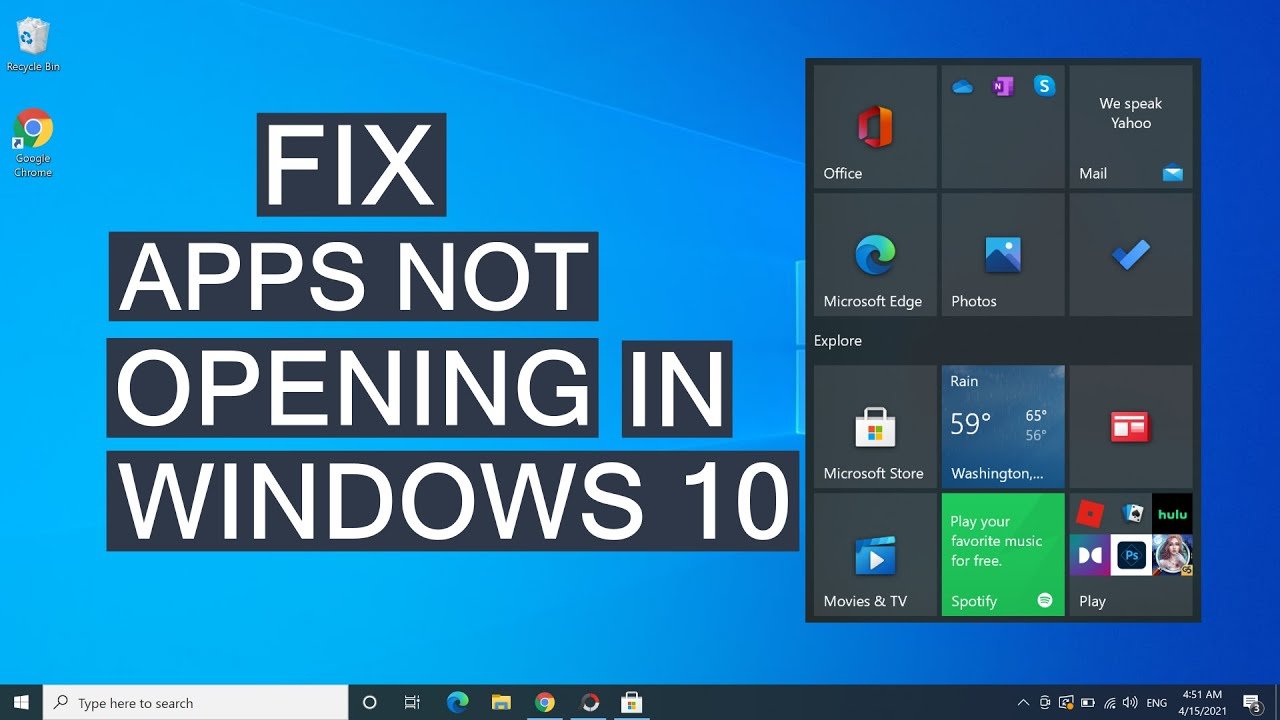
Your desktop gadgets just vanished. No warning. No explanation. Just gone — and now you’re staring at a blank desktop wondering what happened. Windows 10 open gadgets not working is one of those frustrating problems that hits without any obvious reason. Maybe a Windows update broke everything. Maybe a fresh install wiped your settings. Either way, you need a fix that actually works — not a history lesson. This guide walks you through every working solution, from quick settings tweaks to the best third-party tools, so you can get your gadgets back today.
Why Windows 10 Open Gadgets Stop Working
Here’s something most guides skip entirely — Microsoft officially removed desktop gadgets starting with Windows 8, and that removal carried straight into Windows 10. It wasn’t a bug. It was a deliberate decision. Microsoft cited security vulnerabilities in the old Windows Sidebar platform as the main reason. So if you upgraded from Windows 7 expecting your clock, weather widget, and CPU monitor to follow you — they didn’t make the trip.
But that’s not the whole story. Even users who install third-party gadget tools run into problems. Gadgets stopped working on Windows 10 for several different reasons, and knowing which one applies to your situation saves a lot of wasted time.
Microsoft Removed Native Gadgets — Here’s Why
The original Windows gadgets platform — called Windows Sidebar — shipped with Windows Vista and Windows 7. Millions of people used it daily. But in 2012, Microsoft discovered serious security flaws buried deep in the platform. Attackers could potentially run malicious code through gadgets without the user knowing anything was wrong. So Microsoft pulled the plug entirely.
Windows 10 never shipped with native gadget support. Not in any version. Not in any update. The feature is simply gone from the official operating system. What people use today are third-party replacements — and those come with their own quirks and occasional headaches.
Common Reasons Gadgets Fail in Windows 10
Already installed a gadget tool and it stopped working? Here’s what usually causes it:
- Windows Update broke compatibility — Microsoft updates sometimes replace system files that gadget software depends on
- Antivirus blocking gadget execution — Security software flags gadget processes as suspicious activity
- Missing Visual C++ Redistributable — Many gadget tools need this package installed to run at all
- Corrupted gadget installation — A bad install leaves broken files that prevent proper launching
- User Account Control blocking startup — Gadgets need the right permissions to run correctly
- Outdated gadget software — Older versions may not work with newer Windows 10 builds
How to Tell If It’s a Settings Issue or a Software Issue
Before jumping straight into fixes, do one quick check. Open Task Manager and look for any gadget-related processes running in the background. If you see a gadget process running but nothing appears on your desktop — that’s a display or settings issue. If no gadget process runs at all — that’s a software or installation problem. That one simple check saves you from spending an hour fixing the wrong thing.
Best Tools to Get Gadgets Working on Windows 10
Since Microsoft removed the native platform, third-party tools fill the gap. Not all of them are equal. Some crash constantly. Others haven’t seen an update in years. But a few work genuinely well — and one stands clearly above the rest.
What Is 8GadgetPack and Why People Use It
8GadgetPack is the most widely used gadget solution for Windows 10. It brings back the classic Windows 7 gadget experience — weather widgets, clocks, CPU monitors, calendar displays — all running right on your desktop. The developer actively maintains it, which matters because Windows updates regularly break older tools that nobody patches anymore.
The pack includes over 50 gadgets straight out of the box, and you can add more from various gadget libraries online. Most users who want desktop gadgets on Windows 10 start here — and most of the time, it works without drama. But when 8GadgetPack not working problems appear, they can feel impossible to crack without the right steps.
Other Gadget Tools That Work on Windows 10
8GadgetPack isn’t your only path forward.Here are the key options that deserve your attention:
- Rainmeter — A full desktop customization platform rather than a simple gadget tool. Steeper learning curve but incredibly powerful results
- Widget Launcher — Available directly from the Microsoft Store. Simple, safe, and works without compatibility headaches
- Gadgets Revived — Another classic gadget revival tool, though less actively maintained these days
Which Tool Should You Pick — Quick Comparison
| Tool | Free | Ease of Use | Gadget Count | Actively Updated | Best For |
| 8GadgetPack | Yes | Easy | 50+ built-in | Yes | Classic gadget experience |
| Rainmeter | Yes | Advanced | Unlimited | Yes | Power users and customization |
| Widget Launcher | Yes | Very Easy | Limited | Yes | Beginners and casual users |
| Gadgets Revived | Yes | Easy | 50+ | Rarely | Users who prefer older tools |
Step-by-Step Fix — Windows 10 Open Gadgets Not Working
Let’s get practical. These fixes actually solve windows 10 open gadgets not working — ordered from simplest to most technical. Start at the top and work your way down until something clicks.
Fix 1 — Download and Install 8GadgetPack Correctly
Sounds basic. But a surprising number of problems come from downloading an outdated version or rushing through the installation without administrator rights.
- Search for 8GadgetPack and go to the official download page
- Obtain the most recent edition — verify that the version number corresponds with your Windows 10 build.
- Press the right mouse button on the installer and choose “Run as administrator” from the options.
- Complete the installation and restart your PC
- After restart, right-click your desktop — a “Gadgets” option should appear
If nothing shows up after restart, move straight to Fix 2.
Fix 2 — Run Gadgets as Administrator
Windows 10 security settings sometimes block gadget processes from running under standard user permissions. Here’s the exact fix:
- Open File Explorer and go to: C:\Program Files\8GadgetPack\
- Find the main executable — usually named 8GadgetPack.exe
- Right-click it and select Properties
- Click the Compatibility tab
- Check “Run this program as an administrator”
- Click Apply then OK
- Restart your PC and try launching gadgets again
This single step fixes the problem for most users. Don’t skip past it.
Fix 3 — Check Windows Security Settings Blocking Gadgets
Windows Defender and third-party antivirus programs regularly flag gadget software. Even completely legitimate tools get caught in overly aggressive security filters — and the worst part is they often do it silently.
- Open Windows Security from the Start menu
- Go to Virus and Threat Protection
- Click Protection History
- Look for any blocked items connected to gadget files
- If blocked items appear — select them and click Allow
- Add your gadget software to the antivirus exclusion list
And if you run a third-party antivirus — check its quarantine folder separately. Gadget files sometimes disappear there without any notification reaching you.
Fix 4 — Update or Reinstall Visual C++ Redistributable
Many gadget tools depend entirely on Microsoft Visual C++ Redistributable packages to function. If these packages are missing, corrupted, or outdated — gadgets won’t launch. No error message appears. Nothing happens. Just silence.
- Access the Control Panel, then navigate to Programs followed by Programs and Features.
- Scan the list for Microsoft Visual C++ Redistributable entries
- If missing — search for the official Microsoft download page and grab the latest versions
- Install both the x64 and x86 versions
- Restart your PC after installation completes
8GadgetPack Not Working — Specific Fixes
Sometimes the general fixes don’t solve everything. If 8GadgetPack not working problems keep coming back, these targeted solutions deal with the most stubborn specific issues.
8GadgetPack Crashes on Startup — How to Fix
An immediate crash on startup almost always points to a corrupted installation or a direct conflict with a recent Windows update.
- Uninstall 8GadgetPack completely through Control Panel
- Restart your PC fully
- Download a completely fresh copy from the official source
- Install it again using administrator rights
- If crashes continue — open Windows Event Viewer and look for specific error codes logged at the time of the crash. Those codes point you directly to the actual problem.
Gadgets Not Showing on Desktop After Install
You did everything right but nothing appears on the desktop.Irritating — yet typically a simple resolution.
- Right-click your desktop
- Ensure that “Show desktop icons” is activated in the View menu.
- Check whether gadgets are set to display “Always on top” — they sometimes hide behind other open windows
- Press Windows + D to minimize everything and check if gadgets appear on the clean desktop
8GadgetPack Compatibility Issues With Windows Updates
Major Windows feature updates — not the small monthly patches — are the biggest threat to gadget stability. After any large update:
- Check for a newer version of 8GadgetPack immediately
- Make reinstalling 8GadgetPack a habit after major Windows updates
- Watch community forums for known compatibility issues before updating
Pros and Cons of Using Desktop Gadgets on Windows 10
Not everyone needs desktop gadgets. They’re genuinely useful for some people and completely pointless for others. Here’s an honest breakdown.
Why Desktop Gadgets Are Still Useful
| Benefit | Detail |
| Quick system monitoring | CPU, RAM, and disk usage visible without opening anything |
| Weather at a glance | Check conditions without touching a browser |
| Clock and calendar | Especially handy across multi-monitor setups |
| Network monitoring | Watch real-time upload and download speeds |
| Fully customizable | Arrange and resize gadgets to match your workflow |
The real advantage is information density. Developers, power users, and anyone who tracks system performance regularly will find gadgets genuinely worth keeping around.
Why Some Users Skip Gadgets Completely
- They consume small amounts of RAM and CPU running constantly in the background
- Some gadget tools haven’t been properly security-audited recently
- Windows 11 ships with built-in widgets that reduce the need for third-party gadgets
- A cluttered desktop kills focus for many people
The honest answer — if you want quick system stats without opening extra apps, gadgets earn their place. If you rarely glance at your desktop anyway, skip them entirely.
Real World Case Study — Fixing Gadgets After a Windows Update
Here’s a scenario that plays out for thousands of users every single year.
The Problem — Gadgets Disappeared Overnight
A user running Windows 10 with gadgets installed woke up after an overnight Windows update to find everything gone. The right-click menu showed no gadget option anywhere. The software still appeared in the installed programs list — so nothing was uninstalled. But nothing worked either.
The Solution — What Actually Fixed It
After working through the standard fixes with no luck, the user turned to Windows Event Viewer. A Visual C++ Redistributable file had been silently replaced during the Windows update — and the replacement version conflicted with the gadget software.
The fix once identified was straightforward:
- Uninstall all Visual C++ Redistributable packages
- Reinstall the correct versions fresh from Microsoft
- Reinstall the gadget software as administrator
- Restart — gadgets appeared immediately on the desktop
Total fix time: fifteen minutes. The entire key was checking Event Viewer instead of guessing randomly.
What This Case Teaches You
Always check Event Viewer when software stops working after a Windows update. It logs exactly what broke and precisely why. Most people skip this step entirely — and end up spending hours chasing the wrong solution.
Best Windows 10 Gadget Alternatives If Nothing Works
Sometimes gadgets simply won’t cooperate with your particular system setup. These alternatives genuinely replace the classic gadget experience without the compatibility headaches.
Rainmeter — The Most Powerful Option
Rainmeter is a full desktop customization platform, not just a gadget replacement. You can display weather data, system stats, music players, calendars, and custom-designed graphics anywhere on your screen. The learning curve runs steeper than simpler tools but the results look dramatically betterIt is entirely available for free download and usage.
Widget Launcher From the Microsoft Store
For anyone wanting something simple and completely reliable — Widget Launcher from the Microsoft Store handles the job well. It works without compatibility issues, updates automatically, and runs stable across every Windows 10 version. The widget selection is smaller than dedicated gadget packs but covers everything most users actually need.
Simple System Monitor Tools
If system monitoring was your main reason for using gadgets, these dedicated tools actually do it better:
- HWiNFO — Detailed hardware monitoring with customizable display overlays
- MSI Afterburner — Popular with gamers, shows real-time system stats cleanly
- Open Hardware Monitor — Free, lightweight, and consistently accurate
How to Prevent Gadgets From Breaking Again
Getting it fixed once is satisfying. Never needing to fix it again is better.
Settings to Change Right After Installing
After gadgets start working correctly, do these three things immediately:
- Add your gadget software to the antivirus exclusion list — stops security software from blocking it silently later
- Set it to run as administrator permanently — prevents permission conflicts after future updates
- Create a Windows system restore point — gives you a clean way back if a future update causes problems
How Windows Updates Affect Gadget Software
Major Windows feature updates — released roughly twice per year — represent the biggest ongoing threat to gadget stability. They regularly replace system files that third-party software depends on. Small monthly security updates rarely cause any issues at all.
The safest habit is pausing Windows updates for a few days after any major version release. Check whether other users report gadget problems first. If things look clean — then install the update normally.
Best Practices for Long-Term Stability
- Check for newer gadget software versions every few months
- Keep Visual C++ Redistributable packages current
- Avoid installing too many gadgets simultaneously — each one draws system resources
- Restart your gadget software after waking your PC from sleep if anything disappears
FAQ About Windows 10 Open Gadgets Stop Working
What happened to gadgets in Windows 10? Microsoft removed the native gadget platform starting with Windows 8 due to serious security vulnerabilities in the Windows Sidebar system. Windows 10 never included official gadget support. Third-party tools bring the functionality back for users who want it.
How do I get gadgets back on Windows 10? Install 8GadgetPack from its official source. Run the installer as administrator, restart your PC, then right-click your desktop to access gadgets. Most users get everything working within ten minutes.
Why is 8GadgetPack not working on my PC? The most common causes are missing Visual C++ Redistributable packages, antivirus software blocking the program, or a Windows update breaking compatibility. Running 8GadgetPack as administrator fixes the problem for most users without any other steps needed.
Are desktop gadgets safe to use on Windows 10? 8GadgetPack downloaded from its official source is safe. Be careful with individual gadgets from unknown third-party sources — only grab gadgets from places you genuinely trust. Avoid anything that requests unusual system permissions during installation.
Can Windows updates break my gadgets? Yes. Major Windows feature updates occasionally replace system files that gadget software depends on. After big updates, reinstalling your gadget software usually restores everything within minutes.
What is the best free gadget tool for Windows 10? 8GadgetPack suits users who want the classic Windows 7 gadget experience back. Rainmeter works better for advanced users who want deep desktop customization. Widget Launcher from the Microsoft Store is the easiest starting point for beginners.
How do I run gadgets as administrator in Windows 10? Go to the gadget software installation folder, right-click the main executable, select Properties, open the Compatibility tab, and check “Run this program as an administrator.” Click Apply and restart your PC.
Is there an official Microsoft gadget solution for Windows 10? No. Microsoft has no plans to bring back the classic gadget platform. Windows 11 introduced a Widgets panel as a modern alternative, but it works quite differently from the classic desktop gadgets most people remember.
Getting windows 10 open gadgets not working sorted doesn’t have to eat your entire afternoon. Start with the administrator permission fix — it solves the problem more often than anything else. If that doesn’t do it, check your antivirus exclusions and Visual C++ packages next. And if gadgets keep breaking after Windows updates, build reinstalling your gadget software into your regular post-update routine —it takes two minutes and saves hours of frustration down the road.
One final tip worth keeping — after every major Windows update, check whether a newer version of your gadget software is available. Developers typically release compatibility patches within days of big Microsoft updates dropping.