

Bad Wi-Fi is one of those problems that sounds minor until you’re on an important video call and your connection drops mid-sentence. Or you’re streaming a movie and it buffers every three minutes. Or your smart home devices keep disconnecting for no apparent reason. The fix seems obvious get something to boost your signal. However, this is where the majority of individuals make errors. They grab a Wi-Fi extender off a shelf without considering whether an access point would serve them far better. The access point or extender decision genuinely matters and making the wrong call means spending money on a device that solves half your problem while creating new ones.
This guide cuts through the confusion completely. By the end you’ll know exactly which device fits your situation, your budget and your network needs.
What Is a Wireless Access Point and How Does It Work?
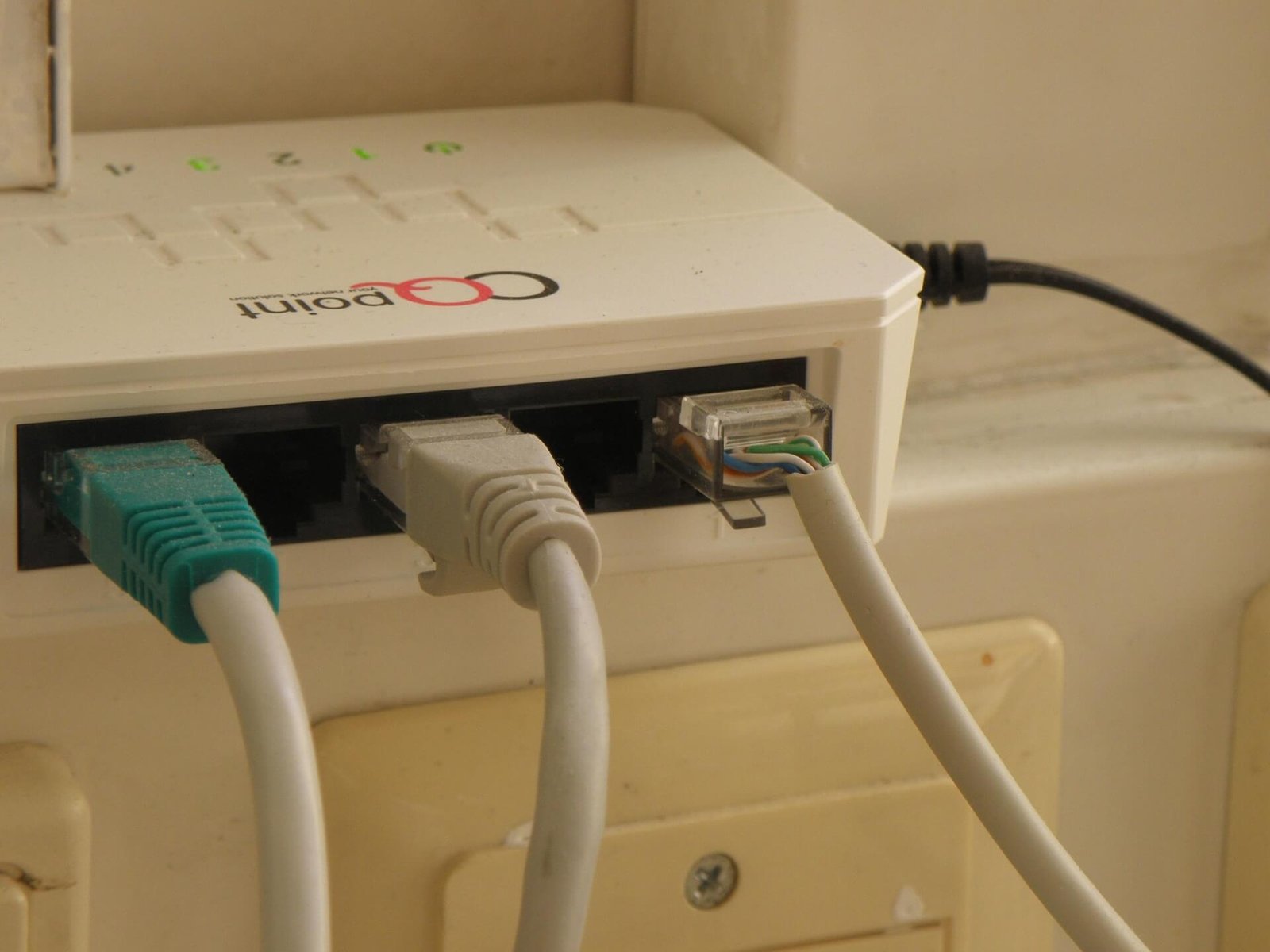
A wireless access point often abbreviated as WAP or simply AP is a networking device that creates a wireless network by connecting directly to your router or network switch via an ethernet cable. Think of it as a brand new Wi-Fi transmitter that broadcasts a fresh, full-strength signal in a specific location. It doesn’t amplify an existing wireless signal. It generates its own using a wired connection as its backbone. Devices connecting to that access point get the same quality connection as if they were sitting right next to your main router.
The wired backbone is what makes access points so powerful. Because data travels to the access point via cable rather than wirelessly there’s no signal degradation in transit. Whatever speed your internet plan delivers arrives at the access point intact and gets broadcast at full strength.
Best use cases for a wireless access point:
- Large homes with multiple floors where cable runs are feasible
- Office environments needing reliable Wi-Fi across multiple rooms
- Gaming setups requiring low latency and consistent speeds
- Intelligent household settings featuring numerous networked gadgets
- Any situation where network performance cannot be compromised
What is a device that extends Wi-Fi coverage and what is its functioning principle? 
A Wi-Fi extender also called a range extender, Wi-Fi booster or wireless repeater takes a different approach entirely. Instead of using a wired connection it captures your existing Wi-Fi signal wirelessly and rebroadcasts it at higher power to reach areas your router’s signal can’t cover effectively.
Plug an extender into a wall outlet somewhere between your router and your dead zone. The extender picks up your router’s signal, amplifies it and rebroadcasts it. Devices in the previously dead zone can now connect to the extender’s rebroadcast signal and access the internet.It sounds perfect. And for certain situations it genuinely is. But the wireless relay process introduces a fundamental limitation that affects every extender on the market regardless of price bandwidth halving. When an extender uses a single radio to both receive and retransmit it must split its available bandwidth between those two tasks. The wireless link between your router and extender is still subject to signal interference, distance degradation and environmental obstacles.
Best use cases for a Wi-Fi extender:
- Rental properties where running ethernet cable isn’t an option
- Small dead zones in otherwise well-covered homes
- Temporary setups that don’t warrant permanent infrastructure
- Budget-limited users who need a quick, affordable signal boost
- Single-room coverage gaps where performance demands are modest
Access Point or Extender — What Is the Core Difference?
The fundamental difference between an access point and an extender comes down to one word: connection. An access point connects to your network via ethernet cable. An extender connects via Wi-Fi. That distinction drives every performance difference between the two devices.
Signal Quality
An access point delivers the same signal quality regardless of its distance from the router because data travels through cable not air. An extender’s signal quality degrades in direct proportion to how weak the original Wi-Fi signal it’s receiving is. Position an extender in a location with a marginal signal and it rebroadcasts a marginal signal. Garbage in, garbage out.
Network Name Handling
Most access points broadcast under the same SSID as your main router meaning your devices see one unified network and roam between your router and access point seamlessly as you move through your home. Extenders typically create a second network with a modified name something like “HomeNetwork_EXT” which means your devices don’t automatically switch between them. You end up manually connecting to whichever network is stronger which is exactly as annoying as it sounds.
Latency
Latency the delay between sending and receiving data stays consistent on access point networks because there’s no wireless relay step introducing additional delay. Extenders add a relay hop to every data transmission which increases latency measurably. For casual browsing this doesn’t matter much. For gaming, video calls and real-time applications it absolutely does.
Here’s a direct comparison:
| Factor | Access Point | Wi-Fi Extender |
| Connection to router | Ethernet cable | Wireless |
| Speed delivered to devices | Full router speed | Up to 50% reduced |
| Signal quality | Consistent | Depends on received signal |
| Latency | Low | Higher due to relay |
| Network name | Same as router | Usually separate SSID |
| Seamless roaming | Yes | Rarely |
| Installation complexity | Moderate | Very easy |
| Cost | Higher | Lower |
| Best for | Permanent setups | Temporary/budget fixes |
When Should You Choose an Access Point Over an Extender?
Certain situations make an access point not just the better choice but the obvious one. Recognizing these scenarios saves you from buying an extender and discovering three months later that it doesn’t solve your actual problem.
Large Homes and Multi-Floor Environments
A single router rarely covers a large home adequately. Two floors, thick concrete walls, a long layout any of these can create dead zones that an extender addresses poorly. Multiple access points connected to a central switch via ethernet create what’s essentially an enterprise-grade wireless network in your home. Each space receives robust Wi-Fi, allowing your devices to move seamlessly between access points without losing their connection.
When Seamless Roaming Matters
If you move around your home while on calls, listening to music through wireless speakers or using smart home devices that need consistent connectivity seamless roaming is essential. Access points broadcasting under the same SSID allow devices to switch between them automatically without any manual intervention or dropped connections. Extenders simply can’t match this experience.
Gaming, Streaming and Video Conferencing
These applications punish inconsistent connections mercilessly. A buffering Netflix stream is annoying. A dropped video call at a critical moment is worse. A laggy gaming session that costs you a ranked match is genuinely infuriating. All three scenarios benefit enormously from the low latency and consistent bandwidth that a properly installed access point delivers. If performance matters and for these use cases it does an access point is the right call.
When Ethernet Runs Are Feasible
Running ethernet cable sounds intimidating but it’s more manageable than most people expect. Cable runs inside walls, along baseboards or through attic spaces are standard home networking projects. If you own your home and plan to stay for years the one-time effort of running cable pays dividends in network performance for as long as you live there. Access points only reach their potential when fed by a wired connection so if cable runs are possible they’re almost always worth doing.
When Should You Choose a Wi-Fi Extender Over an Access Point?
Extenders get a bad reputation in tech circles but they genuinely solve specific problems well. The key is knowing which problems those are.
Renters and Temporary Setups
If you’re renting an apartment running ethernet cable through walls isn’t an option. An extender plugs into any outlet, takes five minutes to configure and immediately improves coverage in a hard-to-reach corner of your space. When you move you unplug it and take it with you. For renters it’s the only practical wireless solution short of a mesh system.
Small Coverage Gaps
Sometimes the problem is genuinely small. One corner of one room gets a weak signal. The garage just outside your back door doesn’t quite reach. A single dead spot in an otherwise well-covered home. These limited, specific coverage gaps are exactly what extenders handle best. You don’t need to run cable and install an access point to fix one corner of your bedroom a $30 extender does the job perfectly.
Budget-Conscious Users
Quality access points cost anywhere from $80 to $300 or more and require ethernet infrastructure to reach their potential. A solid Wi-Fi extender costs $25 to $80 and needs nothing more than a power outlet. If your budget is tight and your performance expectations are modest an extender delivers real value without the infrastructure investment.
Access Point vs Extender — Speed and Performance Comparison
The speed difference between access points and extenders is real, measurable and significant enough to affect your daily internet experience. Understanding it helps you set realistic expectations for whichever device you choose.
How Extenders Cut Your Bandwidth
When a single-band extender receives and retransmits on the same frequency it divides its available bandwidth between those two tasks. A router delivering 300Mbps to an extender results in approximately 150Mbps available to devices connecting through that extender. Dual-band extenders that use one band to receive and another to transmit reduce this penalty but don’t eliminate overhead entirely real-world throughput still drops 20 to 30 percent compared to a direct router connection.
How Access Points Maintain Full Speed
An access point receives its data through ethernet at whatever speed your router delivers 300Mbps, 500Mbps, 1Gbps or beyond. It then broadcasts that speed wirelessly to nearby devices with no relay penalty. A device connecting to a properly installed access point experiences essentially the same speeds as a device sitting next to the main router. The difference in practice is dramatic.
Real-World Speed Comparison
| Scenario | Typical Speed at Device |
| Device near router | 400 Mbps |
| Device connected via access point | 380-400 Mbps |
| Device connected via dual-band extender | 200-280 Mbps |
| Device connected via single-band extender | 150-180 Mbps |
| Device at edge of extender range | 50-100 Mbps |
These figures vary by environment but the pattern is consistent across testing scenarios access points preserve speed far better than extenders do.
For gamers the access point or extender question has a clear answer. Access points win. It isn’t close. Here’s why.
Online gaming doesn’t just need speed it needs consistency and low latency. A connection that delivers 200Mbps with occasional spikes in latency performs worse for gaming than a connection that delivers 50Mbps with rock-steady consistency. Latency measured in milliseconds determines how quickly your actions register on game servers. High latency means your character reacts late. In competitive gaming that delay is the difference between a hit and a miss. Extenders add latency by introducing a wireless relay hop between your device and the router. Every packet of data makes an additional stop at the extender before reaching the router. In a first-person shooter where milliseconds matter this extra hop is genuinely harmful to performance. Professional and serious amateur gamers almost universally recommend either a wired ethernet connection or an access point as the closest wireless alternative.
If running a cable directly to your gaming PC or console is possible that remains the gold standard. An access point installed near your gaming setup is the next best option. An extender should be a last resort for gaming environments.
Access Point or Extender for Large Homes and Offices?
Large environments expose the limitations of Wi-Fi extenders most dramatically. A 3,000 square foot home or a multi-room office needs more than a signal boost it needs comprehensive coverage architecture.
Why Extenders Struggle at Scale
Daisy-chaining multiple extenders placing one extender to boost another extender’s signal compounds the bandwidth penalty with every hop. Two extenders in series can reduce your available bandwidth to 25 percent of the original. This setup also creates multiple separate network names that devices don’t roam between gracefully. The result is a patchwork of weak, inconsistent networks rather than seamless whole-home coverage.
How Multiple Access Points Solve the Problem
A properly designed multi-access-point network uses a central router or network switch connected via ethernet to several access points distributed strategically throughout the space. All access points broadcast the same network name and password. Devices connect to whichever access point delivers the strongest signal and roam between them automatically as occupants move through the building. The experience feels like one seamless network because it effectively is one.
Mesh Networks as a Middle Ground
This systems products like Eero, Google Nest WiFi Pro and TP-Link Deco sit between traditional extenders and full access point systems. Mesh nodes communicate with each other using dedicated wireless backhaul channels rather than sharing bandwidth with client devices. They create seamless roaming with a single network name and manage device connections intelligently. Mesh systems work brilliantly when ethernet backhaul isn’t possible. When ethernet IS available connecting mesh nodes via cable rather than wirelessly delivers dramatically better performance and represents the best of both worlds seamless roaming with wired backbone speed.
Top Access Points and Extenders to Buy in 2025
The market offers excellent options at every price point. Here are the standout performers in 2025.
Best Wireless Access Points in 2025
| Model | Wi-Fi Standard | Max Speed | Coverage | Price |
| TP-Link EAP670 | Wi-Fi 6 | 2976 Mbps | 2500 sq ft | ~$100 |
| Ubiquiti UniFi U6 Pro | Wi-Fi 6 | 5300 Mbps | 4000 sq ft | ~$179 |
| Netgear WAX630 | Wi-Fi 6 | 6000 Mbps | 3500 sq ft | ~$230 |
| TP-Link EAP225 | Wi-Fi 5 | 1350 Mbps | 1500 sq ft | ~$60 |
Best Wi-Fi Extenders in 2025
| Model | Wi-Fi Standard | Max Speed | Coverage | Price |
| TP-Link RE715X | Wi-Fi 6 | 3000 Mbps | 3000 sq ft | ~$80 |
| Netgear EX7500 | Wi-Fi 5 | 2200 Mbps | 2000 sq ft | ~$70 |
| TP-Link RE330 | Wi-Fi 5 | 1200 Mbps | 1500 sq ft | ~$35 |
| Netgear EX3700 | Wi-Fi 5 | 750 Mbps | 1000 sq ft | ~$28 |
For most home users the TP-Link EAP670 represents extraordinary value as an access point — Wi-Fi 6 performance at an approachable price point. Budget-conscious users who genuinely need an extender will find the TP-Link RE330 a reliable performer without breaking the bank.
How to Set Up a Wireless Access Point — Quick Guide
Setting up an access point is more straightforward than most people expect. The ethernet cable run is usually the most involved part the actual device configuration takes minutes.
What You Need Before Starting
- An access point device
- An ethernet cable long enough to reach from your router or switch to the access point location
- A network switch if you plan to connect multiple access points
- A PoE switch or PoE injector if your access point uses Power over Ethernet — most modern ones do
- Access to your router’s admin interface
Step-by-Step Setup Overview
- Plan your cable route — decide where the access point will mount and how the cable will run to reach it
- Run the ethernet cable — from your router or network switch to the access point location
- Mount the access point — most ceiling or wall mount with included hardware
- Connect power — via PoE from your switch or via a separate power adapter
- Access the admin interface — connect to the access point’s default network or use its management software
- Configure the SSID — set the network name and password to match your existing router network for seamless roaming
- Set to access point mode — ensure the device is configured as an access point not a router to avoid network conflicts
- Test connectivity — walk through the coverage area confirming signal strength and speed
Common Setup Mistakes to Avoid
- Leaving DHCP enabled on the access point this conflicts with your router and causes network issues. Disable DHCP on the access point and let your router handle all IP address assignment
- Using a different network name defeats seamless roaming. Use identical SSID and password on all access points
Conclusion
The access point or extender decision boils down to two things your infrastructure and your performance needs. If you can run ethernet cable and you need reliable, fast, seamless Wi-Fi throughout your space an access point is the right investment every time. It costs more upfront but delivers genuinely superior performance that justifies every dollar.
If running cable isn’t possible, your budget is tight or you’re solving a small, specific coverage gap a Wi-Fi extender gets the job done. Just go in with realistic expectations an extender extends your signal but it can’t elevate it. The performance you get depends entirely on the quality of signal it receives. For most homeowners willing to invest in proper setup the access point wins this comparison decisively. For renters, budget shoppers and people fixing minor dead zones the extender still has a valuable role to play. Look at your home layout today. Identify your dead zones. Decide whether running cable is realistic. Then make the call and make it with confidence knowing exactly what each device will and won’t do for your network.