

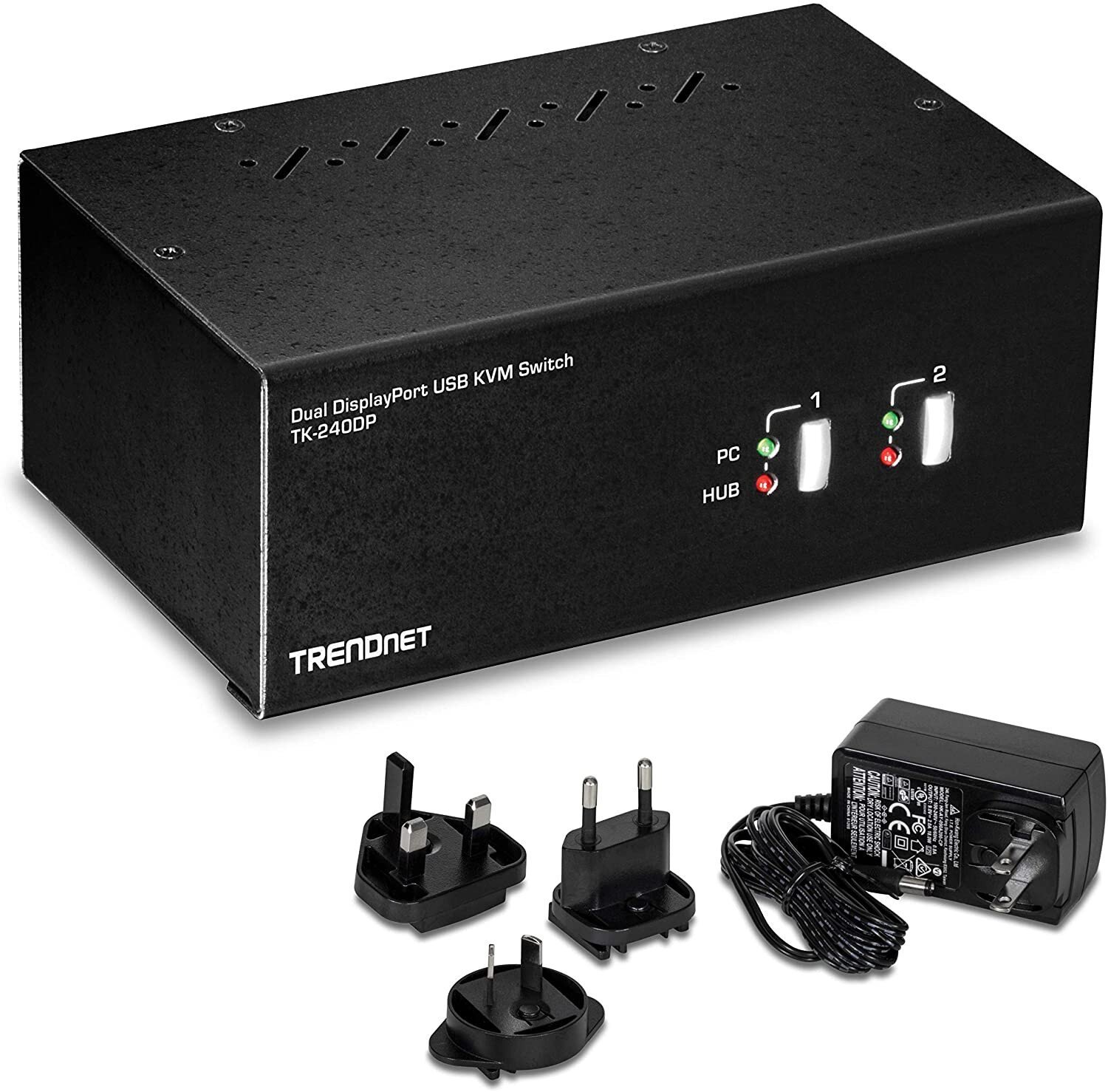
Managing multiple computers at once can feel chaotic. You sit down to work, then suddenly you’re unplugging cables, switching keyboards, and adjusting monitor inputs. It breaks your flow. It wastes time.As days and weeks go by, it accumulates.That’s exactly where a KVM switch DisplayPort dual monitor setup becomes a game-changer.Instead of juggling devices, you control everything from one clean workstation. One keyboard. One mouse. Two monitors. Multiple computers. Instant switching. No hassle.
This guide dives deep into how it works, why it matters, and how you can choose the perfect setup without making costly mistakes.
What Is a KVM Switch DisplayPort Dual Monitor Setup?
A KVM switch represents a device that enables the use of a single keyboard, monitor, and mouse to control multiple computers. It allows you to control multiple computers using a single set of input devices.
When you combine that with DisplayPort dual monitor support, you unlock a much more powerful setup.
Here’s what that means in practical terms:
- You connect two monitors to the KVM switch
- You connect multiple computers (PCs, laptops, servers)
- You use DisplayPort cables for high-quality video output
- You switch between systems instantly using a button or hotkey
Imagine sitting at your desk and moving from your work PC to your personal PC in under a second. No cable swapping. No screen flickering and ne delays.
That’s the real-world benefit of a dual monitor DisplayPort KVM switch.
How a DisplayPort Dual Monitor KVM Switch Works
Once you understand how it works, everything else becomes easier.
Core Components Explained
A typical DisplayPort KVM switch dual monitor setup includes:
- Input Devices: Your keyboard and mouse
- Displays: Two monitors connected to the KVM
- Computers: Two or more systems connected to the switch
- KVM Unit: The central device managing all connections
Each computer connects to the KVM using DisplayPort and USB cables. The monitors connect directly to the KVM. Your keyboard and mouse also plug into the KVM.
Signal Flow Breakdown
Here’s how the magic happens:
- The KVM receives signals from all connected computers
- It sends video output to both monitors
- It routes keyboard and mouse input to one active system
- When you switch, it instantly redirects control to another computer
The transition feels seamless. In high-quality units, you won’t even notice the switch.
DisplayPort vs HDMI in KVM Switches
Choosing DisplayPort isn’t just a trend. It’s a performance decision.
| Feature | DisplayPort KVM Switch | HDMI KVM Switch |
| Max Resolution | Up to 8K | Usually 4K |
| Refresh Rate | Up to 240Hz | Often capped |
| Multi-Monitor Support | Excellent | Limited |
| Gaming Performance | Superior | Good |
DisplayPort handles higher bandwidth. That means smoother visuals, sharper resolution, and better support for dual monitors.
Why You Need a KVM Switch for Dual DisplayPort Monitors
If you’re still switching cables manually, you’re slowing yourself down.
Boost Productivity Instantly
Switching between systems becomes effortless.
Picture this scenario: you’re writing code on one machine. You need to test something on another. Instead of getting up or replugging cables, you press a hotkey. Within a second, your entire workstation shifts to the other system.
That kind of efficiency changes how you work.
Reduce Cable Clutter
A cluttered desk leads to a cluttered mind.
With a dual monitor KVM switch DisplayPort, you eliminate:
- Duplicate keyboards
- Extra mice
- Tangled cables
Your setup becomes clean, minimal, and easier to manage.
Perfect for Multi-System Users
This setup isn’t just for tech enthusiasts. It’s essential for:
- Developers managing multiple environments
- Gamers running dual-PC streaming setups
- IT professionals handling servers
- Traders monitoring multiple systems
If you use more than one computer daily, a KVM switch isn’t optional. It’s necessary.
Key Features to Look for in a KVM Switch DisplayPort Dual Monitor
Choosing the wrong KVM switch leads to frustration. Choosing the right one feels effortless.
Resolution & Refresh Rate Support
Always start here.
Different users have different needs:
- 4K at 60Hz works for office tasks and general use
- 144Hz or higher suits gaming and creative work
- 240Hz support delivers ultra-smooth performance
Your KVM must match your monitor’s capabilities. Otherwise, you lose performance.
Number of Ports & Device Support
Think about how many systems you’ll connect.
- 2-port KVM switch works for most users
- 4-port KVM switch suits professionals with multiple systems
Also check USB compatibility. You may want to connect external drives, webcams, or headsets.
Switching Methods
Different users prefer different control styles:
- Hotkeys: Fast and efficient
- Physical buttons: Simple and reliable
- Remote switching: Convenient for larger setups
Hotkeys usually provide the smoothest experience.
EDID Emulation
This feature often gets ignored, but it’s critical.
Without EDID:
- Screens may flicker
- Resolution may reset
- Displays may disconnect
With EDID:
- Your monitor settings stay consistent
- Switching becomes seamless
- You avoid annoying interruptions
Build Quality & Heat Management
Cheap KVM switches often fail under pressure.
Look for:
- Durable metal casing
- Proper ventilation
- Reliable internal components
A solid build ensures long-term performance.
Types of KVM Switch DisplayPort Dual Monitor Setups
Not every setup is the same. Choose based on your needs.
2-Port Dual Monitor DisplayPort KVM Switch
This is the most common option.
Best for:
- Home users
- Work + personal PC setups
- Simple dual-system environments
4-Port DisplayPort Dual Monitor KVM
This setup handles more complexity.
Best for:
- IT professionals
- Advanced workflows
- Multi-system environments
USB-C + DisplayPort Hybrid KVM Switch
Modern laptops often lack DisplayPort outputs.
This hybrid solution allows:
- USB-C connectivity
- DisplayPort performance
- Flexible setups for newer devices
DisplayPort Dual Monitor KVM vs Alternatives
Understanding alternatives helps you make a smarter decision.
KVM vs Docking Station
A docking station expands one device. A KVM switch controls multiple devices.
| Feature | KVM Switch | Docking Station |
| Controls Multiple PCs | Yes | No |
| Easy Switching | Instant | Limited |
| Dual Monitor Support | Strong | Moderate |
KVM vs Software Switching
Software-based solutions sound convenient, but they often fall short.
Common issues include:
- Input lag
- Network dependency
- Limited display support
Hardware KVM switches provide consistent, reliable performance.
HDMI vs DisplayPort KVM Switch
HDMI works fine for casual setups. DisplayPort delivers better performance.
If you care about:
- High refresh rates
- Dual monitor stability
- Future-proofing
Then DisplayPort is the better choice.
How to Set Up a KVM Switch DisplayPort Dual Monitor System
Setting up your system doesn’t require technical expertise. Follow a simple process.
Step-by-Step Setup Guide
- Connect both monitors to the KVM switch
- Connect each computer using DisplayPort cables
- Plug your keyboard and mouse into the KVM
- Power on all devices
- Test switching functionality
That’s it. Your setup should work immediately.
Common Setup Mistakes to Avoid
Even simple setups can go wrong.
Avoid these mistakes:
- Using outdated or low-quality cables
- Ignoring GPU compatibility
- Buying unsupported KVM models
- Skipping external power requirements
Small mistakes can cause big problems.
Best Use Cases for DisplayPort Dual Monitor KVM Switches
This setup fits a wide range of users.
Remote Work + Personal PC
Switch between work and personal systems without disconnecting anything.
Gaming + Streaming Setup
Use one PC for gaming and another for streaming. Switch instantly when needed.
Office Productivity
Handle multiple systems efficiently in professional environments.
Cybersecurity & IT Management
Monitor and control servers from one centralized workstation.
Common Problems and Troubleshooting Tips
Even the best setups can encounter issues. Knowing how to fix them saves time.
No Display on One Monitor
- Check cable versions
- Ensure GPU supports dual output
- Verify KVM compatibility
Keyboard or Mouse Not Working
- Try different USB ports
- Check power supply
- Restart the KVM
Screen Flickering or Resolution Drops
- Replace low-quality cables
- Ensure EDID support
- Update firmware if available
How Much Does a KVM Switch DisplayPort Dual Monitor Cost?
Prices vary depending on features and quality.
| Category | Price Range | Features |
| Budget | $80–$150 | Basic functionality |
| Mid-Range | $150–$300 | Better performance |
| Premium | $300+ | High refresh rates, advanced features |
Investing in quality prevents long-term frustration.
How to Choose the Best KVM Switch DisplayPort Dual Monitor
Choosing the right device depends on your use case.
For Gamers
Look for:
- High refresh rate support
- Low latency
- Stable performance
For Office Users
Focus on:
- Ease of use
- Reliable switching
- Clean setup
For Professionals
Prioritize:
- Multiple ports
- Strong build quality
- Advanced features like EDID
Frequently Asked Questions (FAQs)
What is the best KVM switch for dual monitors DisplayPort?
The best option supports high resolution, fast switching, and stable performance.
Can a DisplayPort KVM switch support 144Hz or 240Hz?
Yes, but only if the model explicitly supports those refresh rates.
Does a dual monitor KVM switch reduce performance?
No. A high-quality KVM maintains full performance.
Is DisplayPort better than HDMI for dual monitor setups?
Yes. It offers better bandwidth and supports higher refresh rates.
Can a KVM switch be utilized with a laptop?
Yes. You may need adapters such as USB-C to DisplayPort.
Final Thoughts – Is a KVM Switch DisplayPort Dual Monitor Worth It?
A KVM switch DisplayPort dual monitor setup transforms how you work and interact with multiple systems.
It saves time and reduces clutter. It improves focus.
Most importantly, it removes friction from your workflow. Instead of fighting your setup, you control it effortlessly.
If you regularly use more than one computer, this upgrade isn’t just helpful. It’s essential.